


Fax App: Send Fax From Phone
4.31.42K Reviews
App Specs
- Version
- 4.18.4
- Updated On
- License
- Free
- Downloads
- 500,000+
- Developer
- Amplify·
- Categories
- Business
- Platform
- Android
Screenshots
 Analysis by AppCompare
Ever thought you’d need to send a fax in this digital age? I mean, who even owns a fax machine anymore, right? But there are those moments when sending a fax becomes inevitable, and that’s where the Fax App: Send Fax From Phone swoops in like a superhero. Let me walk you through this handy little app that turns your smartphone into a faxing powerhouse.
What to expect from a phone-based fax service
A mobile fax app is most useful when an office, clinic, school, or government department still asks for paperwork by fax and you don’t have access to a machine. I’d treat this as a practical tool for those occasional holdouts, rather than a replacement for every way of sharing documents. If the recipient accepts email or a secure upload, those options are often simpler; when fax is specifically required, sending from a phone can save a detour.
This is a business app from Amplify·, and its purpose is narrow in a helpful way: prepare a document on your phone and send it as a fax. It’s free to install, rated for Everyone, and has an average rating of 4.3 from around 4,900 ratings, with more than 500,000 installs. The current version is 4.18.3, and it supports Android 8.0 and later. Those details make it easy to judge whether your device is in range, but they don’t change the main question: how often will you actually need to fax?
I think it suits freelancers, small-business owners, people handling occasional paperwork, and anyone who needs to send a form while away from a printer or office. It’s less compelling if faxing is part of your daily workload, if you need a formal business fax setup with team controls, or if the recipient can accept a digital submission instead. For frequent use, compare the ongoing cost and workflow with a dedicated business fax service before relying on a phone app.
The Basics of Faxing from Your Phone
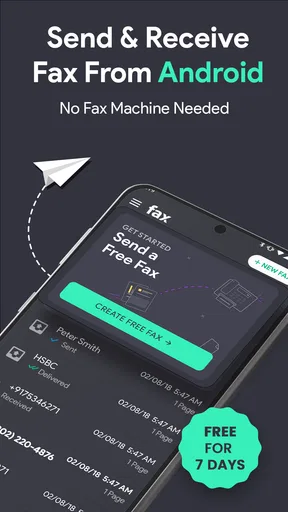
So here’s the deal. You download Fax App: Send Fax From Phone, open it up, and boom—you’re greeted with a sleek, user-friendly interface. No fluff, no unnecessary buttons. Just what you need to get the job done. The app supports both Android and iOS, so it’s got most of us covered. You can send faxes worldwide, which is a sweet deal if you’re dealing with international clients or offices.
Getting started without second-guessing the document
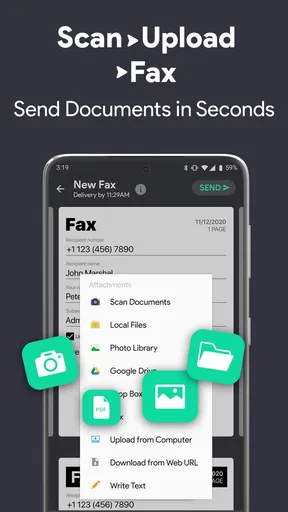
Setting it up is as easy as pie. Once you've installed the app, you can either sign up or just start faxing right away. You can import documents from your phone, cloud storage, or even snap a photo of a document with your camera. It’s super convenient when you’re on the go and need to send something urgently.
Want to fax a document from your email or a cloud service like Dropbox? No problem. The app integrates smoothly with these services, making it effortless to access and send your documents.
Worth Reading Before You Choose

EA SPORTS FC Mobile 26 Is a Bigger Football Game, but It Takes Time

Flipboard Shows What News Apps Must Do Beyond the Feed

Switching to Android Auto Means Rethinking Your Driving Routine

Google Calendar Makes a Crowded Week Easier to Manage

Ludo King Makes the Most of the Minutes Between Plans

Baby Panda World Brings Quick Play to Modern Phones, but Its Game Library Feels Busy
Before you begin, gather the recipient’s fax number and check which pages they need. For a paper form, lay it flat, use even lighting, and make sure all corners are visible in the photo. That small pause can prevent a blurry signature or a cut-off page from becoming a reason to send the fax again. If the document is already digital, choosing that file instead of photographing a screen or printout avoids an unnecessary loss in clarity.
Your first meaningful send: a careful, simple workflow
A realistic first use might be sending a signed authorization form to a clinic while you’re away from home. I’d take a moment to review the form, confirm that the signature and any required pages are included, then select the document and check the recipient details before sending. The app’s preview gives you a chance to catch a crooked image, faint text, or a page in the wrong order before it leaves your phone.
One useful trade-off is that a phone camera makes capture convenient, but it also puts more responsibility on you to prepare the page well. A clean scan is not just about appearance: small text, checkboxes, and handwritten details need to remain readable after fax transmission. Adjusting brightness and contrast can help with a washed-out or shadowed image, but I wouldn’t assume editing can rescue a page that was badly lit or partly cropped. Retake the photo when the preview looks doubtful.
Quality and Speed – Fax Like a Pro
One thing I was particularly impressed with is the quality of the faxes. The app uses advanced image processing, so your documents come out clear and professional-looking, even if you’ve snapped a quick photo of them. Plus, the transmission speed is pretty good. I sent a couple of test faxes, and they went through without a hitch.
There’s also a handy feature that lets you preview your document before sending it. You can adjust the contrast and brightness, ensuring that everything looks just right. It’s these little touches that make the app stand out.
For a multipage packet, I’d check the preview page by page rather than judging only the first sheet. That is especially worthwhile when pages have different layouts, such as a printed form followed by a photographed receipt. Make sure the order makes sense to the person receiving it, and avoid sending duplicate pages just because you are uncertain whether the first selection worked. A deliberate review is quicker than sorting out a confusing submission later.
Common points of confusion after tapping send
Sending a fax and knowing that the recipient has acted on it are different things. The app’s tracking and notifications help you see the transmission status, but a sent or delivered update should not be treated as proof that someone has read the pages or accepted them. For a deadline-sensitive form, keep the confirmation and contact the recipient if you need acknowledgement beyond a transmission update.
Another practical question is whether to resend when there is a delay or an unclear status. I would first check the fax history and notification, then confirm the number and ask the recipient whether the pages arrived before sending a second copy. That avoids creating duplicates, which can be awkward with forms that include personal or time-sensitive information. If a resend is necessary, use the saved record as a reference and verify the destination again.
Keeping Track of Your Faxes
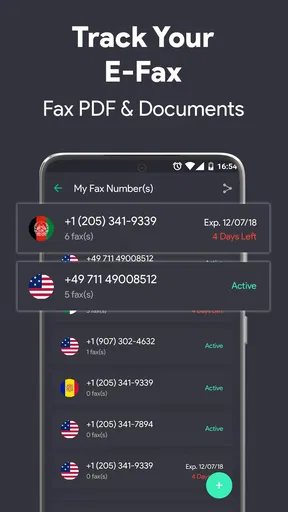
Another feature I love is the built-in tracking system. Once you hit send, you can keep tabs on your fax’s journey. You get notifications when it’s successfully sent and delivered. This is perfect for those important documents where you need confirmation of receipt.
The app also keeps a history of all your sent faxes, which is great for record-keeping. You can easily access past faxes and resend them if needed. It’s like having a filing cabinet in your pocket.
That history is particularly handy when you send paperwork in stages. You can check what went out before following up, rather than relying on memory or searching through several folders on your phone. I’d still keep any confirmation that matters for your own records, and avoid treating a fax history as the only copy of an important document. Keep the original file somewhere you can find it again, especially if you may need to correct or update it.
Privacy and careful handling of documents
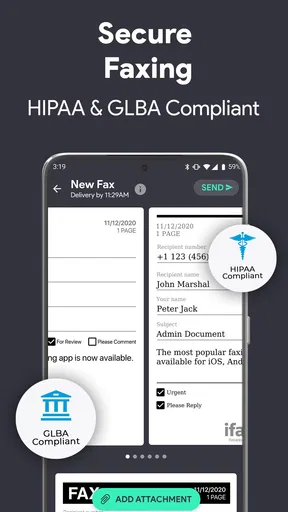
Now, let’s talk about security. We’re all a bit paranoid about data safety these days, right? The app uses secure transmission protocols to ensure your documents are safe and sound. It’s reassuring to know that your sensitive information isn’t floating around in cyberspace unprotected.
If you’re dealing with confidential documents, this feature is a must-have. It’s comforting to know that the app prioritizes your privacy.
Even with secure transmission, I’d be selective about which documents I send and where I store the source files. A phone can contain personal papers alongside everyday photos and downloads, so it helps to know which file you selected and to avoid leaving extra copies scattered across folders. For especially sensitive paperwork, follow the recipient’s instructions and any rules that apply to your situation; a convenient sending method does not replace careful handling at either end.
Costs, alternatives, and when another route is better
Alright, let’s chat about the moolah. The app offers a variety of pricing plans. Whether you’re an occasional faxer or you need to send faxes regularly, there’s a plan to fit your needs. The pricing is reasonable, especially considering the convenience and features you’re getting. Plus, there’s a free trial if you want to give it a whirl before committing.
In my opinion, it’s a small price to pay for such a big convenience. No more trips to the office supply store or begging your office manager to let you use the ancient fax machine in the corner!
The app is free to download, but in-app purchases range from $0.99 to $369.99 per item, so I’d check the options shown in the app before choosing a plan or making a purchase. The best value depends on how often you fax and how much material you send; a one-off form and a steady stream of business paperwork are very different needs. If you only have one urgent document, compare the total cost with a nearby print-and-fax service. If you fax regularly, compare a dedicated service’s tools and billing terms rather than assuming a mobile option is automatically cheaper.
For a document that can be submitted through an official online portal, I’d usually choose the portal because it can be easier to track and may avoid the extra step of faxing. Email can be convenient too, but it is not a substitute when the recipient explicitly requires a fax. The useful decision is not “fax app or no fax app”; it is whether this particular recipient accepts the format you plan to use.
The next step after your first fax
Once you’ve sent one document successfully, the simplest way to make future attempts less stressful is to keep a clean digital copy of commonly used forms and learn where your sent-fax history appears. For a new recipient, double-check the number each time instead of relying on an old note. For a document with several pages, review the order and the last page before sending. These habits make the app more dependable without adding much effort.
It is also worth deciding in advance what confirmation you actually need. If the recipient only asks you to transmit a form, a status update may be enough for your next step; if they must review or approve it, you may still need to call or follow up separately. Knowing that distinction prevents a common misunderstanding and helps you choose the right channel when a deadline is close.
Safety First
Now, let’s talk about security. We’re all a bit paranoid about data safety these days, right? The app uses secure transmission protocols to ensure your documents are safe and sound. It’s reassuring to know that your sensitive information isn’t floating around in cyberspace unprotected.
If you’re dealing with confidential documents, this feature is a must-have. It’s comforting to know that the app prioritizes your privacy.
Pricing – Is It Worth It?
Alright, let’s chat about the moolah. The app offers a variety of pricing plans. Whether you’re an occasional faxer or you need to send faxes regularly, there’s a plan to fit your needs. The pricing is reasonable, especially considering the convenience and features you’re getting. Plus, there’s a free trial if you want to give it a whirl before committing.
In my opinion, it’s a small price to pay for such a big convenience. No more trips to the office supply store or begging your office manager to let you use the ancient fax machine in the corner!
The Final Word
So there you have it. If you’re looking for a reliable, easy-to-use app for sending faxes, Fax App: Send Fax From Phone is a solid choice. It's perfect for those unexpected moments when you need to fax something pronto. With its user-friendly interface, high-quality transmission, and robust security features, it’s like having a mini office in your pocket.
Whether you’re a business professional or just someone who occasionally needs to send a fax, give this app a shot. It’s a game-changer in the world of faxing, and I bet you’ll wonder how you ever lived without it. Happy faxing!
Pros
- Easy-to-use interface for quick faxing.
- Supports multiple file formats for sending.
- Includes a document scanner feature.
- Tracks fax delivery status efficiently.
- Integrates with cloud storage services.
Cons
- Limited free faxes before subscription.
- Requires stable internet connection.
- Occasional delays in fax delivery.
- Some features locked behind paywall.
- No option for receiving faxes.
FAQs for Fax App: Send Fax From Phone
How does the Fax App: Send Fax From Phone work?
The Fax App allows users to send faxes directly from their smartphones. After downloading the app, you can scan documents using your phone's camera or upload files from your device. The app converts these files into fax format and sends them to the recipient's fax machine. It’s a convenient solution for sending important documents without needing a traditional fax machine.
Is the Fax App secure for sending sensitive documents?
Yes, the Fax App is designed with security in mind. It uses encryption to protect your documents during transmission, ensuring that your data remains confidential. With compliance to industry standards, the app provides a secure channel for sending sensitive information, making it suitable for business and personal use.
Are there any subscription fees or additional costs involved?
The Fax App typically offers a free trial period, after which you may need to subscribe to a monthly or annual plan. These plans vary in price based on the number of pages you can fax per month. Some features, such as international faxing or additional pages, might incur extra charges depending on the plan you choose.
Can I receive faxes using the Fax App?
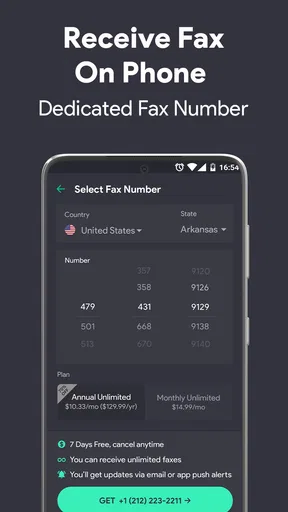
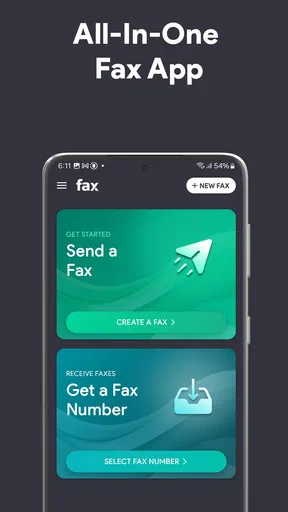
Yes, many versions of the Fax App offer the capability to receive faxes. When you sign up, you can often choose to get a dedicated fax number, allowing you to receive faxes directly within the app. This feature is especially useful for users who need to manage both sending and receiving faxes from their mobile devices.
What file formats does the Fax App support?
The Fax App supports a wide range of file formats, including PDF, JPG, and TIFF, among others. You can either scan documents using your phone's camera or upload files stored on your device. This flexibility ensures that you can easily send various types of documents without needing additional conversion software.


